
How to Link GA4 to Google Ads Correctly
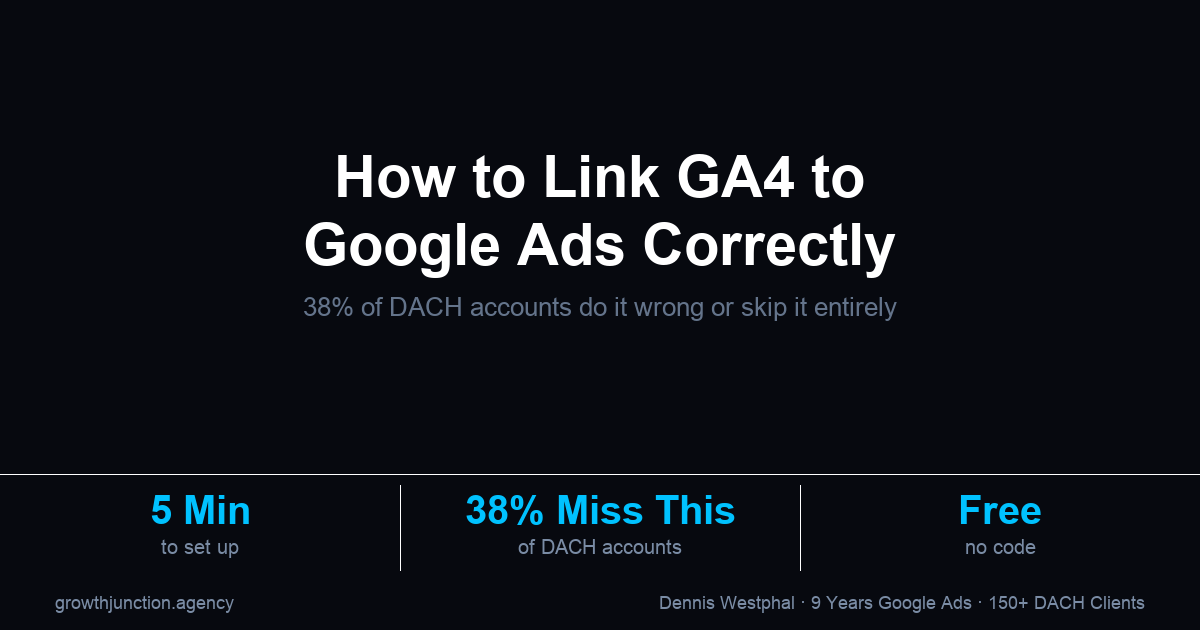
Linking GA4 to Google Ads takes under 5 minutes - but 38% of DACH accounts do it wrong or skip it entirely. Without the link, smart bidding loses its signal, remarketing audiences disappear, and attribution breaks. Here is how to do it correctly.

TL;DR
- The GA4-Google Ads link takes under 5 minutes to set up and requires no code - but 38% of DACH accounts skip it or link the wrong property.
- Without the link, your Google Ads account loses access to GA4 remarketing audiences, attribution reports, and conversion data - smart bidding reverts to guessing mode.
- After linking, you still need to import conversions separately - linking alone does not tell Google Ads what to optimise for.
Linking GA4 to Google Ads correctly unlocks smart bidding signals, remarketing audiences, and attribution data that are simply unavailable without the connection (official linking guide). In 38% of DACH accounts audited between 2020 and 2026, the link was either missing entirely or pointed at the wrong GA4 property (Growth Junction audit review set, 2020-2026). Without it, your GA4 conversion tracking and GA4 setup deliver nothing useful to your campaigns. The Google Ads algorithm operates without the behavioural data GA4 collects. In audits, I usually find this problem in accounts that look technically complete on the surface but never had the final connection checked properly. This guide covers what the link does, how to set it up in under 5 minutes, and the mistakes that silently break it.
Why does linking GA4 to Google Ads actually matter?
GA4 and Google Ads are two separate platforms. Without an explicit link, they do not share data. Your GA4 property collects rich behavioural data - which pages people visit, how long they stay, which forms they submit - but none of that reaches Google Ads. The algorithm bids based on clicks alone, with no downstream signal about what those clicks actually did.
The link enables three things that are otherwise impossible:
- Smart bidding with real conversion data - GA4 conversion events become importable into Google Ads and feed Target CPA, Maximise Conversions, and Target ROAS bidding strategies.
- GA4 remarketing audiences in Google Ads - any segment you build in GA4 (e.g. "visited pricing page but did not convert") becomes available as a Google Ads audience for Search, Display, and YouTube campaigns.
- GA4 attribution in Google Ads reports - you can view multi-touch attribution data from GA4 directly inside Google Ads, which often paints a different picture than last-click.
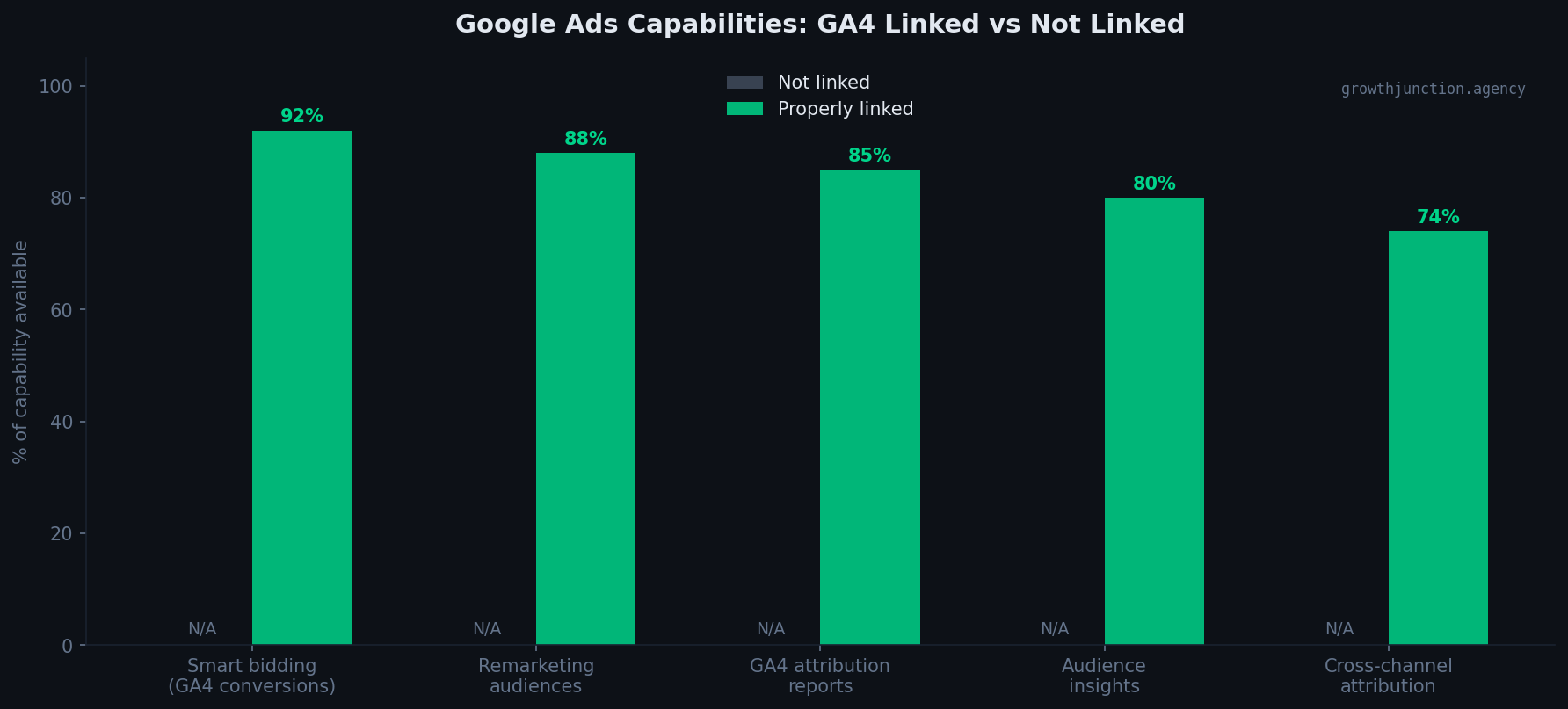
When GA4 is not linked to Google Ads, five core capabilities become fully unavailable - including smart bidding signal, remarketing lists, and attribution reporting. The link costs 5 minutes; not having it costs significantly more. Chart note: percentages represent the share of each capability accessible with a correct and complete GA4 link - conversions imported, Personalized Advertising enabled. Values fall below 100% because additional conditions apply: minimum audience size (100+ users for remarketing), sufficient conversion volume for data-driven attribution, and Consent Mode V2 for full signal modelling.
How do you link GA4 to Google Ads step by step?
The link is set up from the GA4 side, not from Google Ads. You need Editor access in the GA4 property and Editor or Administrator access in the Google Ads account.
- In GA4, go to Admin (the cog icon in the bottom left).
- Under Property settings, scroll to the Product links section and click Google Ads links.
- Click the blue Link button in the top right.
- In the Google Ads accounts panel, select the Google Ads account(s) you want to link. These are accounts accessible to the Google account you are logged in with.
- Under Configure settings, enable Enable Personalized Advertising - this is what activates GA4 audience sharing with Google Ads. Without it, the link exists but remarketing is disabled.
- Leave Enable Google Signals on if you want cross-device reporting (recommended).
- Click Save. The link is active immediately.
That is the full process. No code, no developer, no DNS changes. The entire setup takes under 5 minutes if you have the right access levels.
| Step | Where | Time | Access |
|---|---|---|---|
| Open Admin > Product links > Google Ads links | GA4 | 30 sec | GA4 Editor |
| Select Google Ads account | GA4 | 1 min | GA4 Editor + Ads Editor |
| Enable Personalized Advertising | GA4 | 10 sec | GA4 Editor |
| Save link | GA4 | 10 sec | GA4 Editor |
| Import conversions (Tools > Goals > Conversions > Summary) | Google Ads | 3 min | Ads Editor |
What does the link actually unlock in Google Ads?
Once the link is live, Google Ads gains access to three data streams from GA4:
1. GA4 Audiences for remarketing. Every audience you define in GA4 - based on events, user properties, or behavioural sequences - becomes available in Google Ads under Shared Library > Audience Manager. You can target these audiences in Search (bid adjustments or RLSA), Display, and YouTube. Audiences appear within 24-48 hours of the link being established and require a minimum of 100 users before they can be activated in a campaign.
2. GA4 Conversion events for import. After linking, you can go to Google Ads > Tools > Goals > Conversions > Summary, click + Create conversion action, and select your GA4 property to import events as conversion goals. This is the signal that feeds Target CPA and Target ROAS bidding. Without importing at least one conversion, smart bidding has nothing to optimise towards.
3. GA4 Attribution data in Google Ads reports. The Google Ads reporting interface gains access to GA4's data-driven attribution model, which distributes credit across multiple touchpoints rather than awarding 100% to the last click. This changes how you read campaign performance - keywords that appear unprofitable on last-click often show positive ROAS in data-driven attribution.
How do you import GA4 conversions into Google Ads after linking?
Linking enables the import - but it does not do it automatically. You must explicitly choose which GA4 events become Google Ads conversion actions.
- In Google Ads, go to Tools > Goals > Conversions > Summary.
- Click + Create conversion action.
- Scroll past the category list to find "Use Google Analytics to bring in multiple conversion actions from an existing property" and click Select property. Choose your GA4 property from the dropdown.
- Check the conversion events you want - typically
generate_leadfor service businesses,purchasefor e-commerce. - Set Include in Conversions to Yes for your primary goal. This is what tells smart bidding what to optimise for.
- Click Import and Continue.
Important: only mark one conversion action as "Primary" per campaign type. If you have three separate goal events all set to "Include in Conversions = Yes", smart bidding optimises for all three simultaneously, which dilutes the signal. Secondary goals (e.g. page depth, time on site) should be set to "Include in Conversions = No" - they still record but do not influence bidding.
What are the most common GA4 linking mistakes?
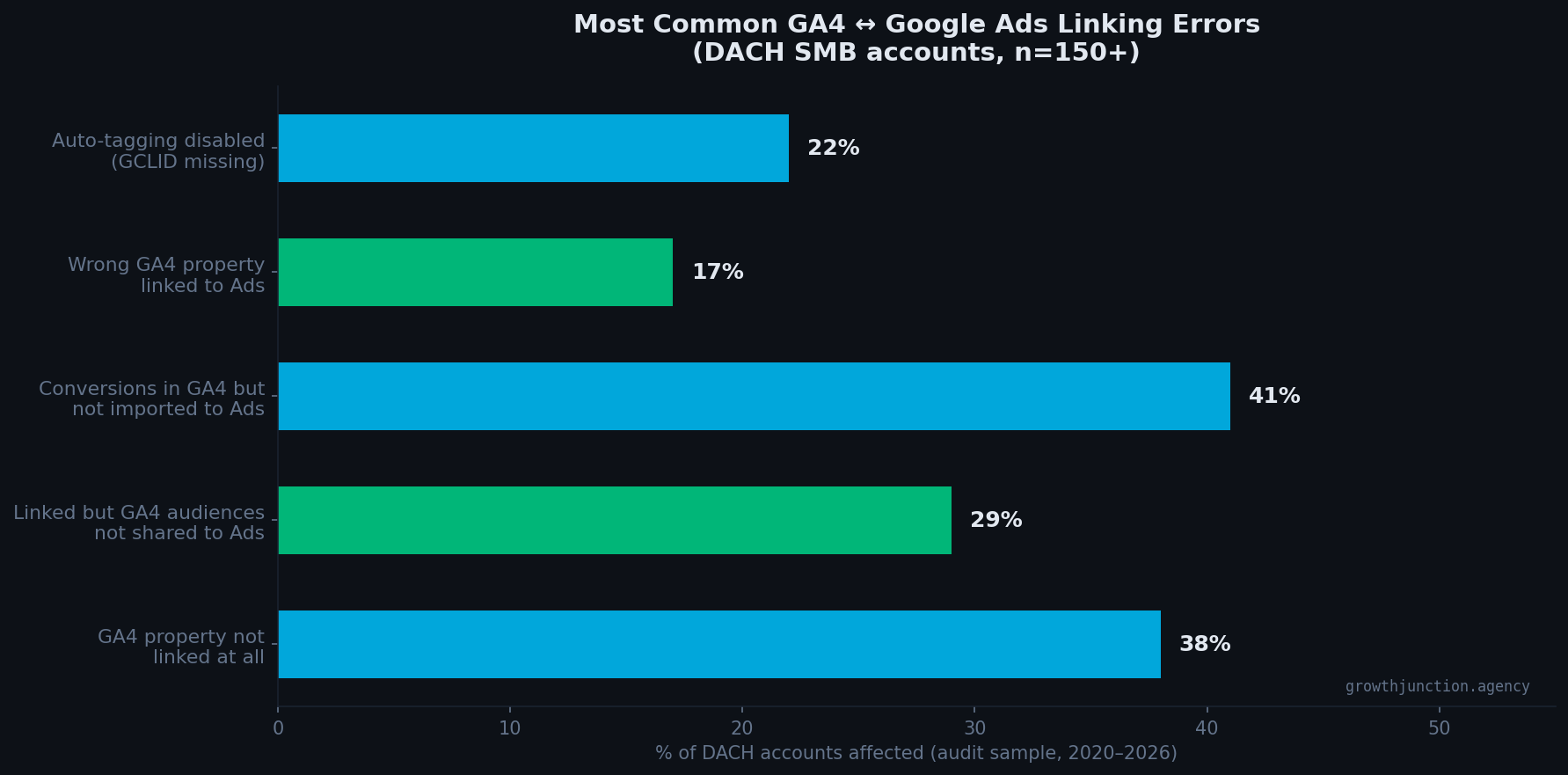
Audit data from 150+ DACH accounts: the most common mistake was having conversions in GA4 that were never imported into Google Ads, a silent failure where tracking appears active but smart bidding has no signal (Growth Junction audit review set, 2020-2026).
Based on 150+ DACH account audits between 2020 and 2026, these are the six most common failures:
- No link at all (38% of accounts). The GA4 property and Google Ads account exist independently, with zero data sharing. Often set up by someone who knew how to install GA4 but was not aware the Ads link was a separate step.
- Linked but "Enable Personalized Advertising" was left off (29%). The link exists but audiences are not shared. This disables all GA4-based remarketing in Google Ads without any visible error message - it just silently does not work.
- Conversions in GA4 but never imported to Ads (41%). The link is correct but no one completed the import step. Smart bidding sees zero conversions and cannot exit its learning phase.
- Wrong GA4 property linked (17%). A test property, an old property, or a property for a different website is linked instead of the live site. Google Ads receives data for the wrong domain.
- Wrong Google Ads account linked (14%). Common with MCC setups: the link is established to the manager account rather than the individual client account. GA4 shows the link as active, but no data flows into the account where campaigns are actually running. Check GA4 Admin > Google Ads Links and confirm the linked account ID matches the account where your campaigns live.
- Consent Mode V2 not implemented (31%). Without Consent Mode V2, GA4 cannot model conversions from users who decline cookies. In DACH markets where 30-50% of users decline, smart bidding receives a significantly degraded signal - the conversion data it learns from covers only a fraction of actual enquiries. The link is technically active, but the data quality flowing through it is compromised.
How do you verify the link is working correctly?
After setting up the link, check three things. This is also the point where I see the most false confidence in audits: the link exists on paper, but the parts that make it commercially useful are still missing (Growth Junction audit review set, 2020-2026).
1. GA4 Admin confirms the link. In GA4 > Admin > Product links > Google Ads links, the link should appear in the Completed tab with status "Linked". If it shows "Pending" after 24 hours, there is an access permission issue to resolve.
2. GA4 audiences appear in Google Ads. In Google Ads > Tools > Shared Library > Audience Manager, switch to the "Your data segments" tab. Within 24-48 hours of linking, you should see GA4 audiences listed there. If you see only "Similar segments" and nothing from GA4, "Enable Personalized Advertising" was likely not checked during setup.
3. Auto-tagging is active. In Google Ads, go to Settings > Account Settings and confirm "Auto-tagging: Tag URLs" is enabled. Then visit your website by clicking one of your own ads (use a different browser or incognito) and check the landing page URL - it should contain a gclid= parameter (gclid = Google Click ID - the unique identifier Google Ads appends to every ad click). If it does not, auto-tagging is disabled.
In client accounts: what breaks when GA4 is not linked
Across client accounts, one of the most frustrating versions of this problem is when the account looks correct on the surface but the link is broken underneath. I have seen accounts with GA4 installed, GTM in place, and conversion tracking apparently active, while the GA4 property linked to Google Ads was actually an old test property. The live site was sending data somewhere else entirely.
The result is predictable: campaigns keep spending, reporting looks half-alive, and bidding never gets the signal it actually needs. Once the correct property is linked and the right conversions are imported, the account usually becomes much easier to steer because Google Ads is finally learning from the real site instead of a dead setup. That cleanup pattern shows up often enough in audits that I now treat the property ID check as a mandatory step, not a nice-to-have (Growth Junction audit review set, 2020-2026).
The practical lesson is simple: always confirm the linked property in GA4 Admin matches the live property on the site. If those two IDs do not line up, the rest of the setup barely matters.
Data sources & methodology
Benchmark data and market observations from Google Ads accounts managed by Dennis Westphal across Switzerland and the DACH region (2020-2026). Keyword volume data: DataForSEO March 2026. Industry context based on official Google Ads documentation.
Not sure if your GA4 and Google Ads are correctly linked?
In the free Lead-Leak Analysis, I check the GA4 link, auto-tagging, audience sharing and conversion import, then identify the first signal break worth investigating. No generic pitch. Start the Lead-Leak Analysis →
Frequently asked questions
What is the difference between linking GA4 to Google Ads and importing conversions?
Linking GA4 to Google Ads creates the data-sharing connection between the two platforms - it allows Google Ads to read GA4 audiences and attribution data, and enables you to import conversions. Importing conversions is a separate step you do after linking: you go into Google Ads > Conversions > Import and select the specific GA4 events you want to use for bidding. The link is the bridge; the import tells Google Ads which events to treat as goals.
Do I need admin access to both GA4 and Google Ads to link them?
Yes. You need Editor or Administrator access in the Google Ads account, and Editor access in the GA4 property. If you are an agency or freelancer managing accounts for clients, the cleanest setup is to have the client grant you the required permissions rather than sharing login credentials. Google Ads allows you to request access directly from the account.
Can I link one GA4 property to multiple Google Ads accounts?
Yes - a single GA4 property can be linked to multiple Google Ads accounts. Best practice is one GA4 property per website - you should not share a property across multiple clients or unrelated sites. However, one property can legitimately connect to several Google Ads accounts, for example an agency manager account and a client's own account, or a business running separate accounts for different regions. Each link is managed independently under GA4 Admin > Product links > Google Ads links.
What is auto-tagging and why does it matter for GA4?
Auto-tagging is a Google Ads setting that automatically appends a GCLID (Google Click ID) parameter to your ad destination URLs when someone clicks an ad. This GCLID is what GA4 reads to identify that a session came from Google Ads - and which specific campaign, ad group, and keyword drove it. Without auto-tagging enabled, GA4 sees the traffic as organic or direct, not as paid search, which breaks attribution entirely. Auto-tagging is on by default in Google Ads; only disable it if you have a specific reason and are using manual UTM tagging instead.
How long does it take for GA4 audience data to appear in Google Ads after linking?
The link itself takes effect immediately, but GA4 audiences take 24-48 hours to appear in Google Ads as usable remarketing lists. Newly created GA4 audiences also require a minimum of 100 users before they can be used in a campaign - so if you are starting from scratch, plan for a 2-4 week build-up period before remarketing is active.
What happens if I have both GA4-imported conversions and Google Ads native conversion tags running simultaneously?
This causes double-counting. If both a GA4-imported conversion and a Google Ads conversion tag fire on the same action (e.g. a form submission), Google Ads will count it as two conversions. The standard recommendation is to pick one source: either use GA4-imported conversions (preferred for multi-channel visibility) or native Google Ads tags - not both for the same conversion action. Check Tools > Goals > Conversions > Summary and disable any duplicate actions.
Ready for a clearer signal?
The free Lead-Leak Analysis connects business actions, consent, tags, destinations and outcome feedback around your setup. Use the analytics leak-score quiz first, or complete the two-question fit check—no generic pitch and no obligation to rebuild everything.
The fit check takes less than a minute.Use USD or your local equivalent. Your answers stay in your browser and only determine whether the booking calendar appears.
Turn this insight into a clearer next decision.
Conversion Tracking Audit
Related Growth Junction guide.
Read the guide →02 · Related guideGa4 Conversion Tracking Setup
Related Growth Junction guide.
Read the guide →03 · Related guideBest Google Ads Agency Switzerland Small Business
Related Growth Junction guide.
Read the guide →Service bridgeAnalytics and tracking
Make the signal trustworthy before budget decisions.
Explore the service ↗